🖧 Console and shells
🖥️ The console
The box's console is whichever it has of the screen (VGA) and the serial line — both show the same
thing, and either can answer. It only ever shows information and a small menu; setup and everyday
admin work happen on :8443, never at the console. Outside first boot, it shows a status screen
(health, the base and product versions, the admin and SSH addresses, certificate and host-key
fingerprints) that refreshes every five seconds, plus R for Recover access — the way back
in with no admin able to sign in, from the console alone — and N for the network editor (see
Changing the appliance's network).
🔑 Getting an SSH key
There are no admin-supplied login keys and no SSH passwords: every key is issued by the box itself.
-
Sign in to
:8443, open Access, choose Get an SSH key (it asks for a fresh TOTP code).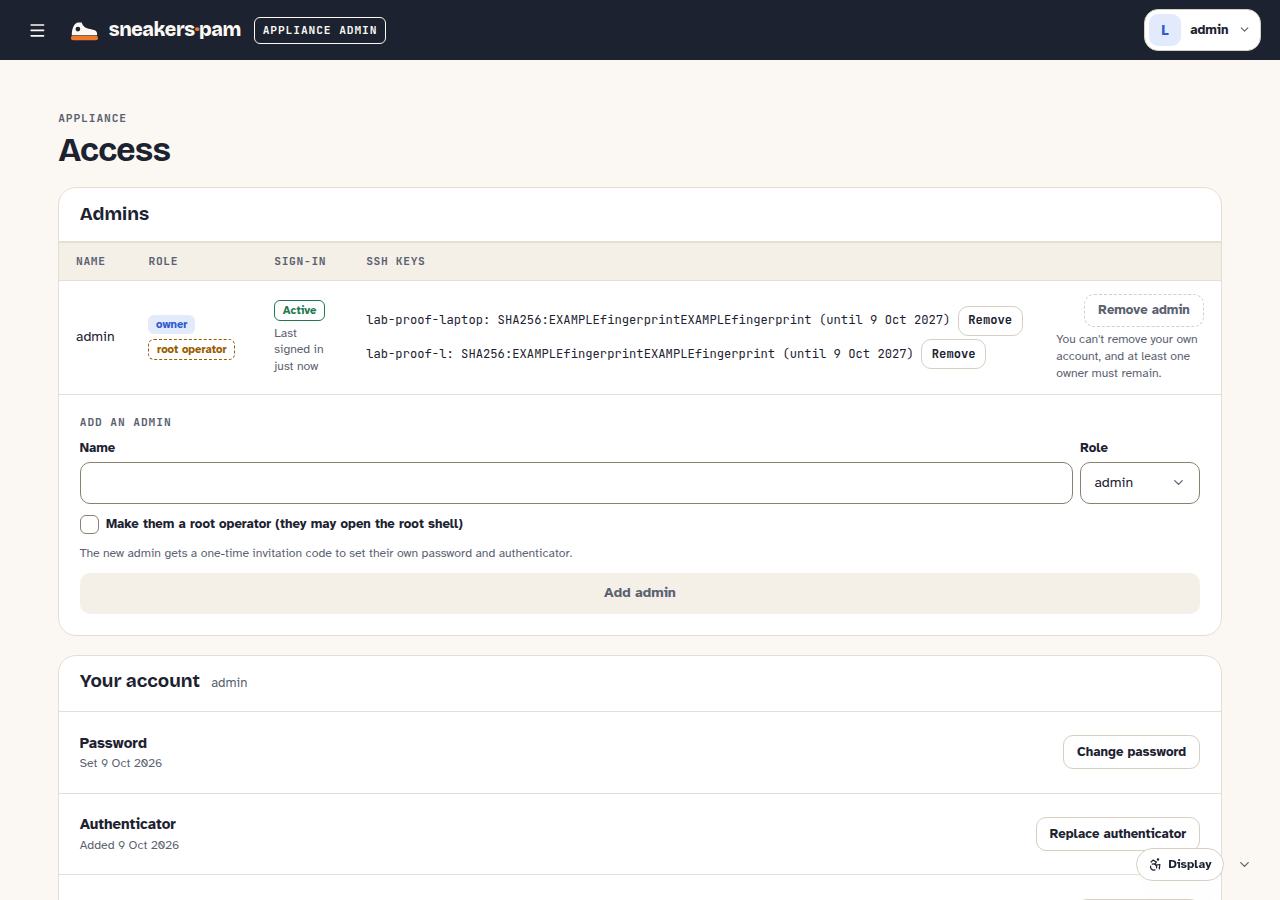
-
Download the key in whichever form your client needs — OpenSSH, a PuTTY
.ppk, or PEM — the box keeps none of them. -
Log in with your own name and that key:
ssh -i <key> -o CertificateFile=<key>-cert.pub <name>@192.0.2.10 -
The closed shell asks for a TOTP code next — there's no way to skip it, and no password login.
🐚 The closed shell
Every admin's login shell, sneakers-shell, offers only the appliance's own commands —
interactively (with help, line editing and tab completion) or one per SSH command line. A few of
the more useful ones:
| Command | What it does |
|---|---|
status | The box's own status, the same facts the console's status screen shows |
admins list | Every admin and how many login keys each has |
network show / network set / network commit | Review, stage and apply a network change (owners only to stage and commit); see Changing the appliance's network |
disk cleanup | Free disk space right now, the same cleanup that runs hourly |
<product> mcp [on|off] | Show or set the MCP switch |
<product> setup-token | Read a one-time value the product exposes, such as Sneakers' setup token |
<product> backup create / list | Cut or list a backup set; see Backing up and restoring the appliance |
support-bundle [full] | Print the box's diagnostics as plain text; see Getting a support bundle |
help <command> shows any command's purpose, flags and an example; -o json prints machine-
readable output. Only what your role may run is ever offered — an admin who isn't an owner doesn't
see the owner-only commands (such as network set, network commit and setup recovery-key) in
help or Tab completion, though accessd checks the role of every call either way. The product's
owner-only commands (<product> reset, <product> reinstall, and exporting, restoring and
removing a backup set) also ask for a fresh authenticator code.
🔓 The root shell
A root operator can open a one-off root shell for troubleshooting, through a two-step challenge:
-
From the closed shell,
shellasks for a challenge (16 characters, good for 10 minutes by default). -
On
:8443, with a fresh step-up, type that challenge to get an 8-character code.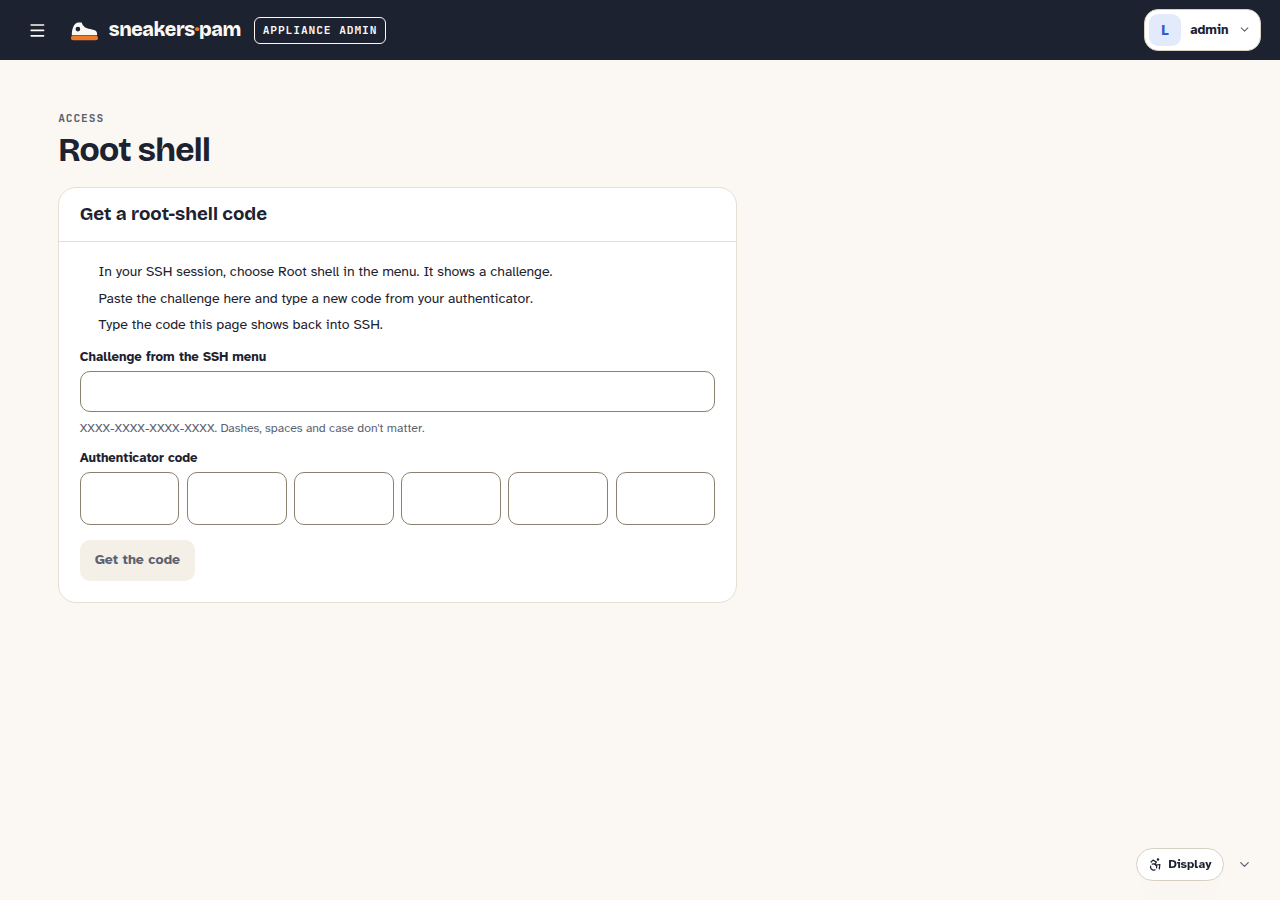
-
Type the code back into the SSH session (not echoed). It's bound to that login and works once; three wrong tries close the challenge, and they count toward the account's lockout.
The root shell is busybox ash, ends after the policy's time limit or 10 minutes idle, and is fully
audited. With a product installed, kubectl and helm work against it with no setup —
busybox's limited tool set is covered in Troubleshooting.
🤖 The MCP switch
<product> mcp (closed shell or console) and the MCP card on :8443 are the same switch: turning
MCP on or off for agents. Switching it on reports how far the product has come up with it —
starting, ready, or failed — within about 90 seconds. See Agents and the
MCP for issuing tokens once it's on.