🔐 Sign in
Sneakers-PAM always takes two things to sign in: something you know (your password, or your company's single sign-on) and a second factor (an authenticator app, a passkey or an emailed code).
🚪 Signing in
-
Open your Sneakers-PAM address, for example
https://sneakers.example.org. -
Sign in with the first factor:
- If your organisation uses single sign-on, choose Sign in with SSO and sign in with your company account. You come straight back.
- For an account that doesn't use SSO, choose Use local login instead (the local login opens on its own when there's no SSO), then type your username or email and your password.
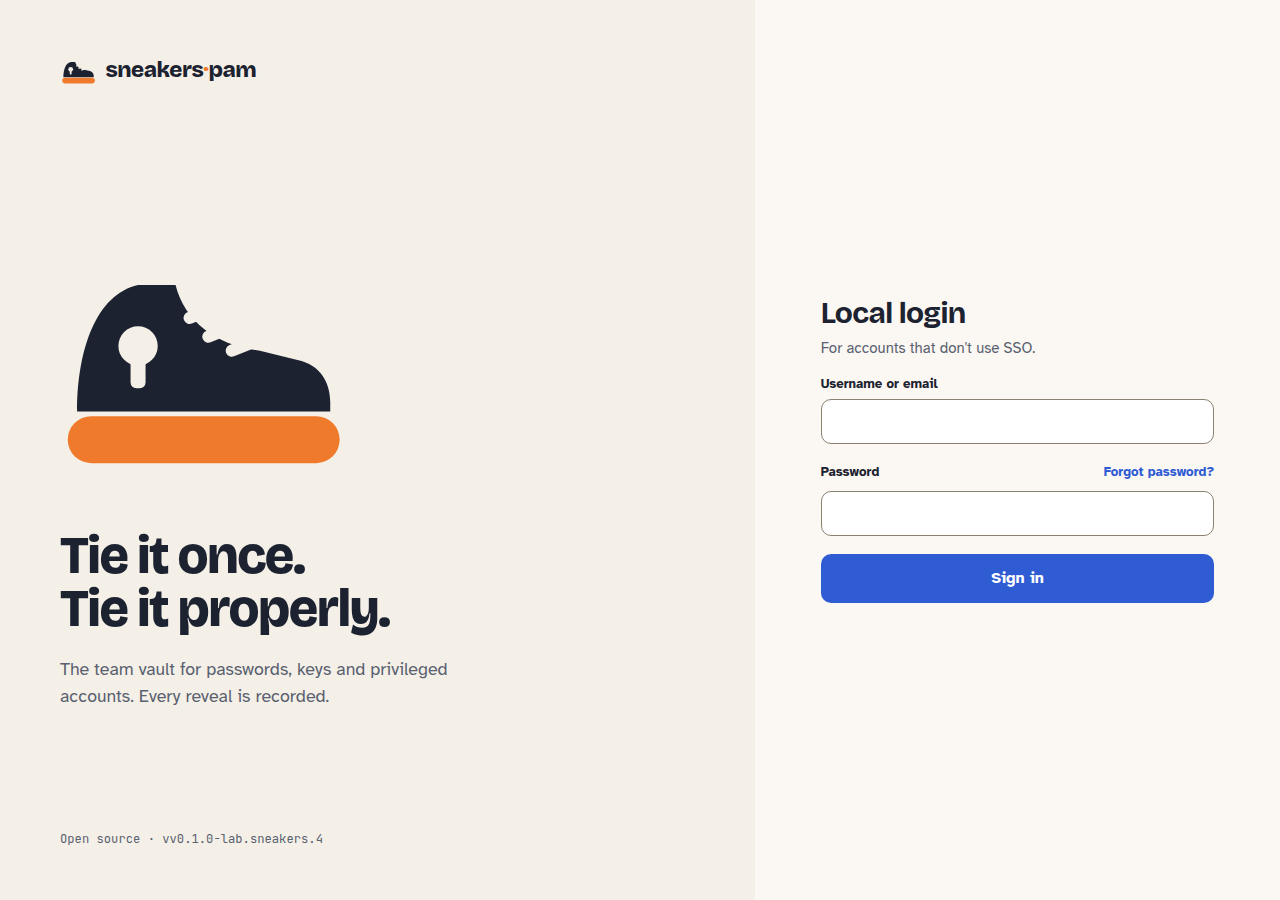
-
Give your second factor: the six-digit code from your authenticator app, your passkey, or a code Sneakers-PAM emails you when that's offered.
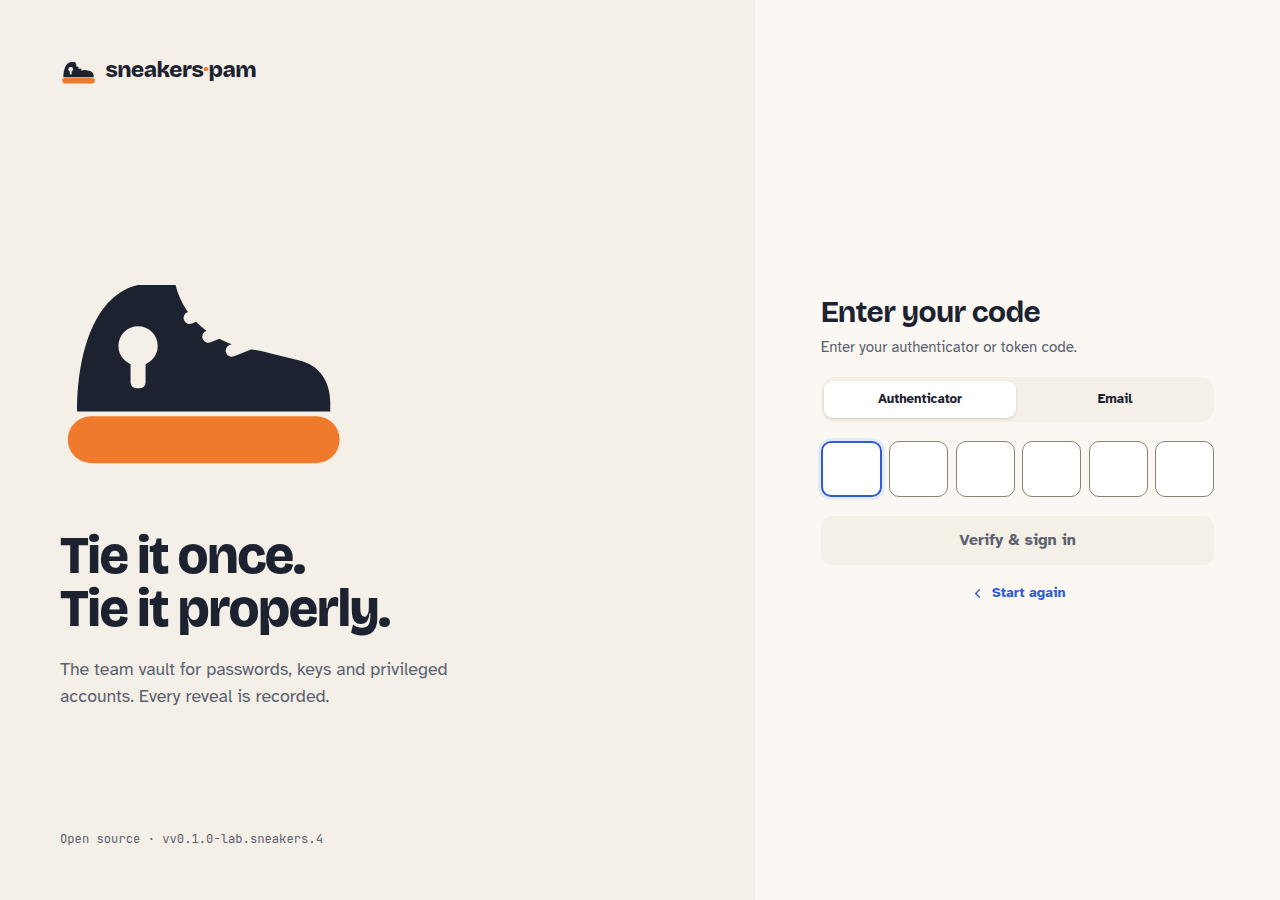
You land on your dashboard.
A wrong username or a wrong password gets the same answer, so nobody can tell which of the two was wrong. An account an admin has turned off says so.
🛡️ Your first sign-in: add a second factor
The first time you sign in, Sneakers-PAM asks you to protect your account with a second factor:
- Authenticator app: scan the QR code with an app on your phone, or type the key under Can't scan? Enter this key, then type a code from the app to finish.
- Passkey: your browser or device makes one; nothing to type.
When your administrator requires a second factor you can't use Sneakers-PAM until it's set up. Otherwise you can choose Skip for now and add one later from Security.
🔁 Forgot your password
On the local login choose Forgot password?, enter the email on your account, and type the code Sneakers-PAM emails you along with your new password. The code expires after a while; Send a new code asks for another. Reset needs the install's email to be set up; if it isn't, the page says reset isn't available and an admin can help.
⚙️ Your security settings
Open your account menu and choose Security to see how you sign in:
- add or replace your authenticator app;
- add a passkey, which is faster than typing a code;
- remove a method you no longer use.
Changing how you sign in needs a fresh second factor, so you'll be asked for one if your last was a while ago.
⏳ Step-up: when it asks again
Some actions ask for your second factor again even though you're signed in: approving a request, checking out a secret with super-sensitive fields, revealing a secret in a folder where an admin turned on step-up, and breaking the glass. After one step-up you aren't asked again for the rest of the install's step-up window (30 minutes unless an admin changed it). Break-glass always asks.
🩺 If something's wrong
The account menu's About and diagnostics shows the versions you're running and has Copy diagnostics, which copies a support report (versions and the state of each service, no secrets) to paste into a support request.